Manual Assessment Scoring
Find pending attempts, score learner answers, and unlock grades with Complete
In this guide
Find Pending Assessments
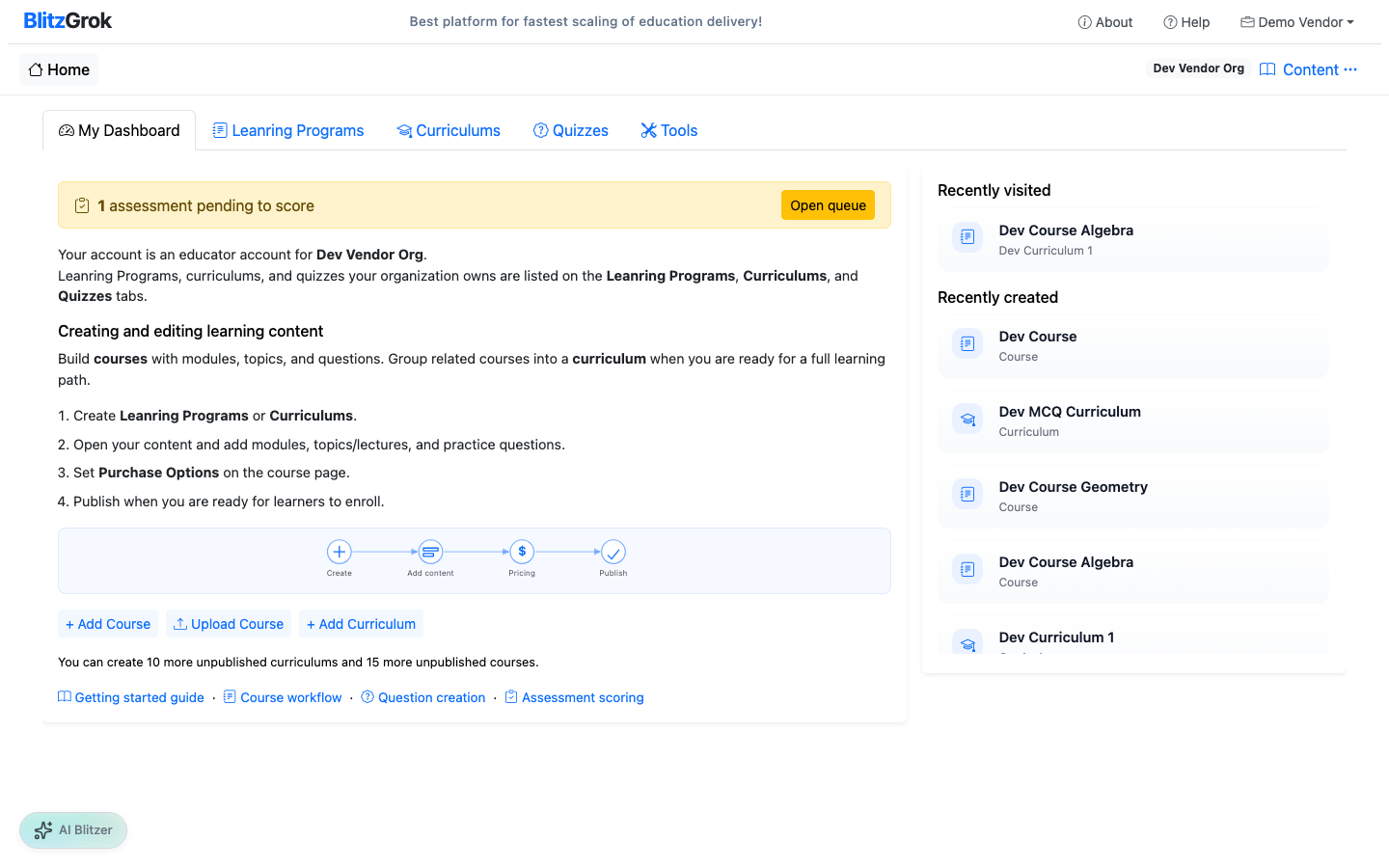
When a learner submits an attempt that still needs your review, BlitzGrok surfaces the pending count in three places.
Who can score: the course owner (including via an owned curriculum) or a site administrator.
Dashboard summary
A yellow banner on your home dashboard shows how many assessments are pending to score, with an Open queue button.
Scoring nav
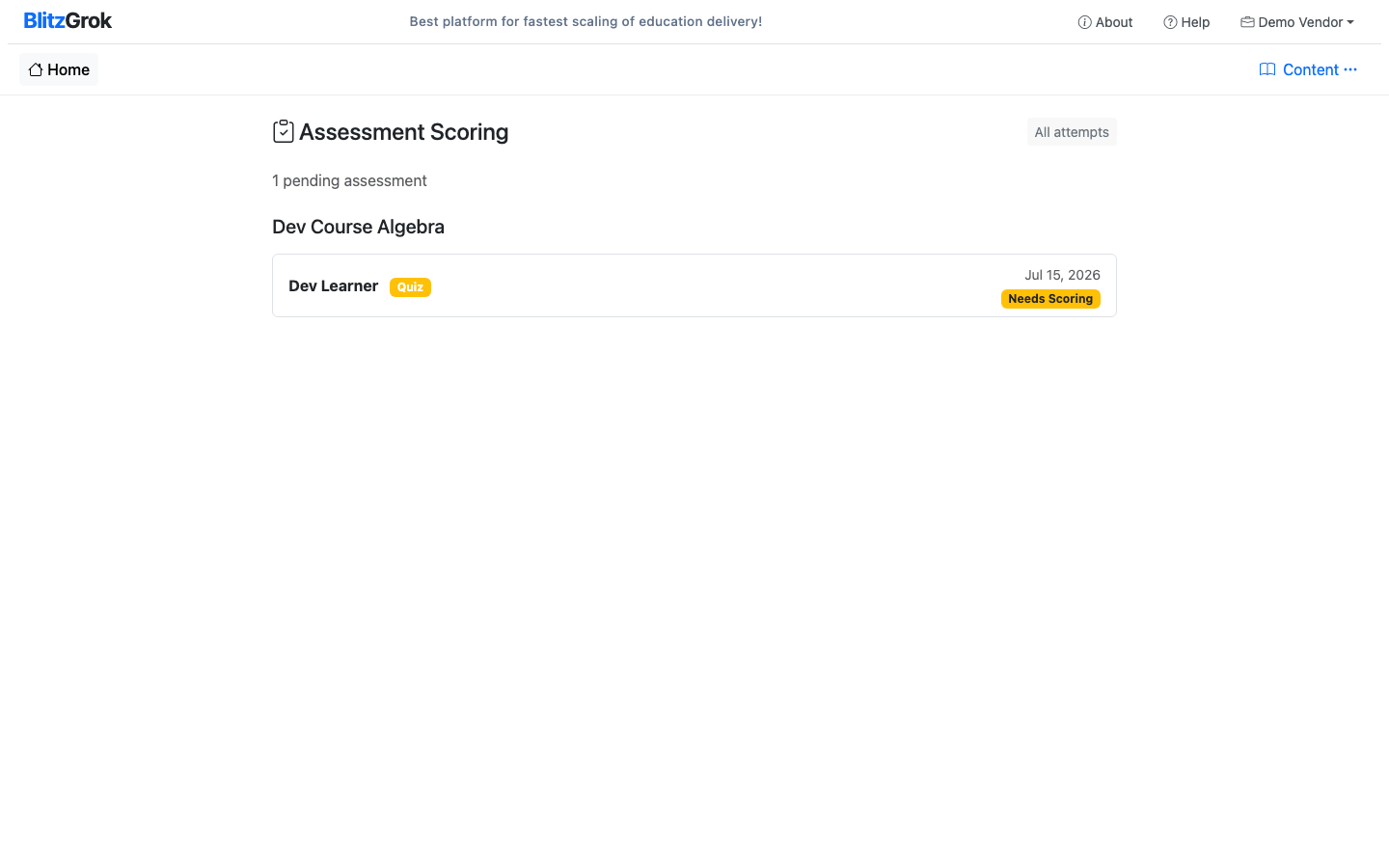
Expand the Content workspace selector to open Scoring. A yellow badge shows the pending count.
Course Assessment Info
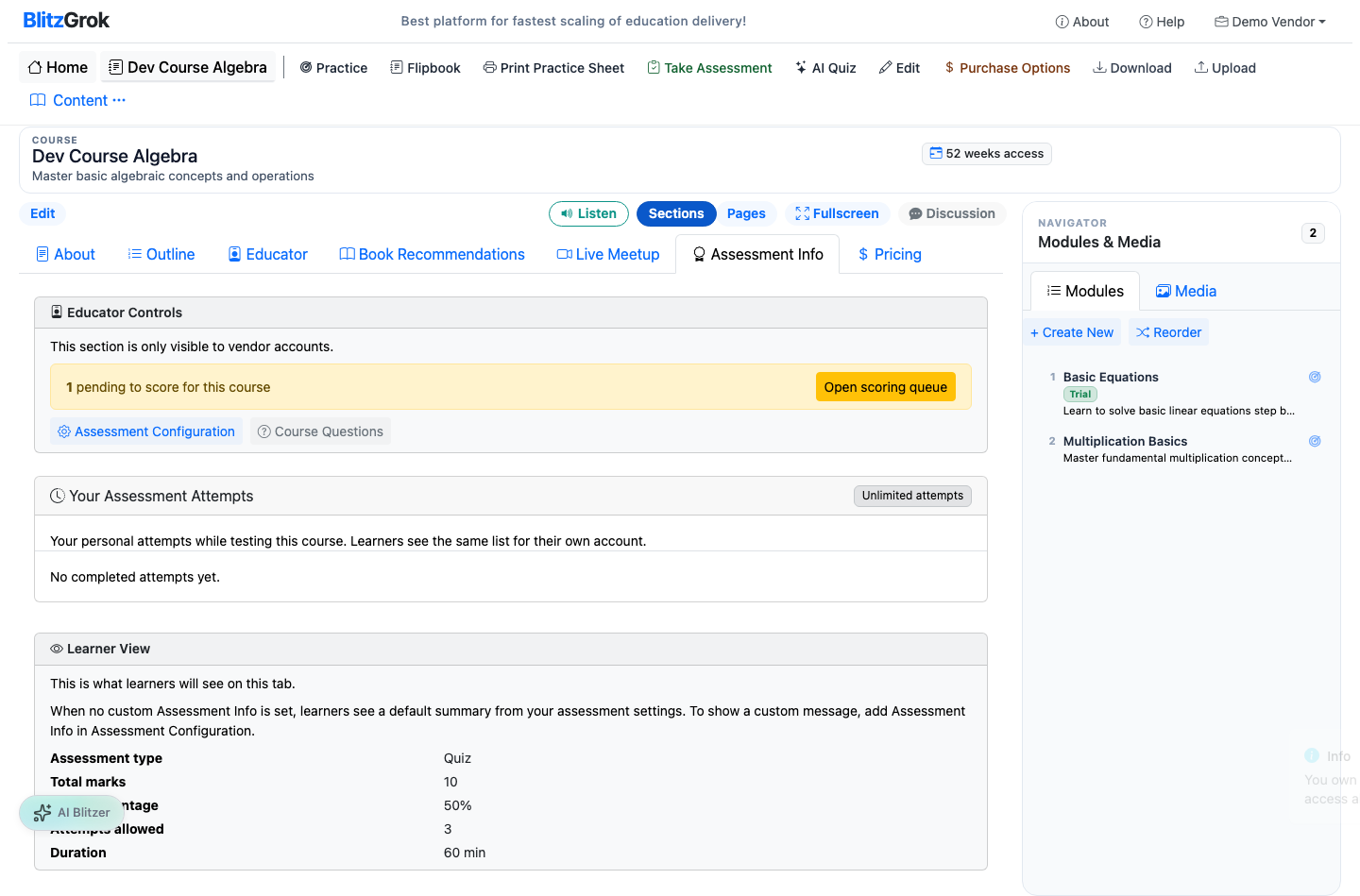
On the course page, the Assessment Info tab shows pending attempts for that course and links to the scoring queue.
Scoring Queue
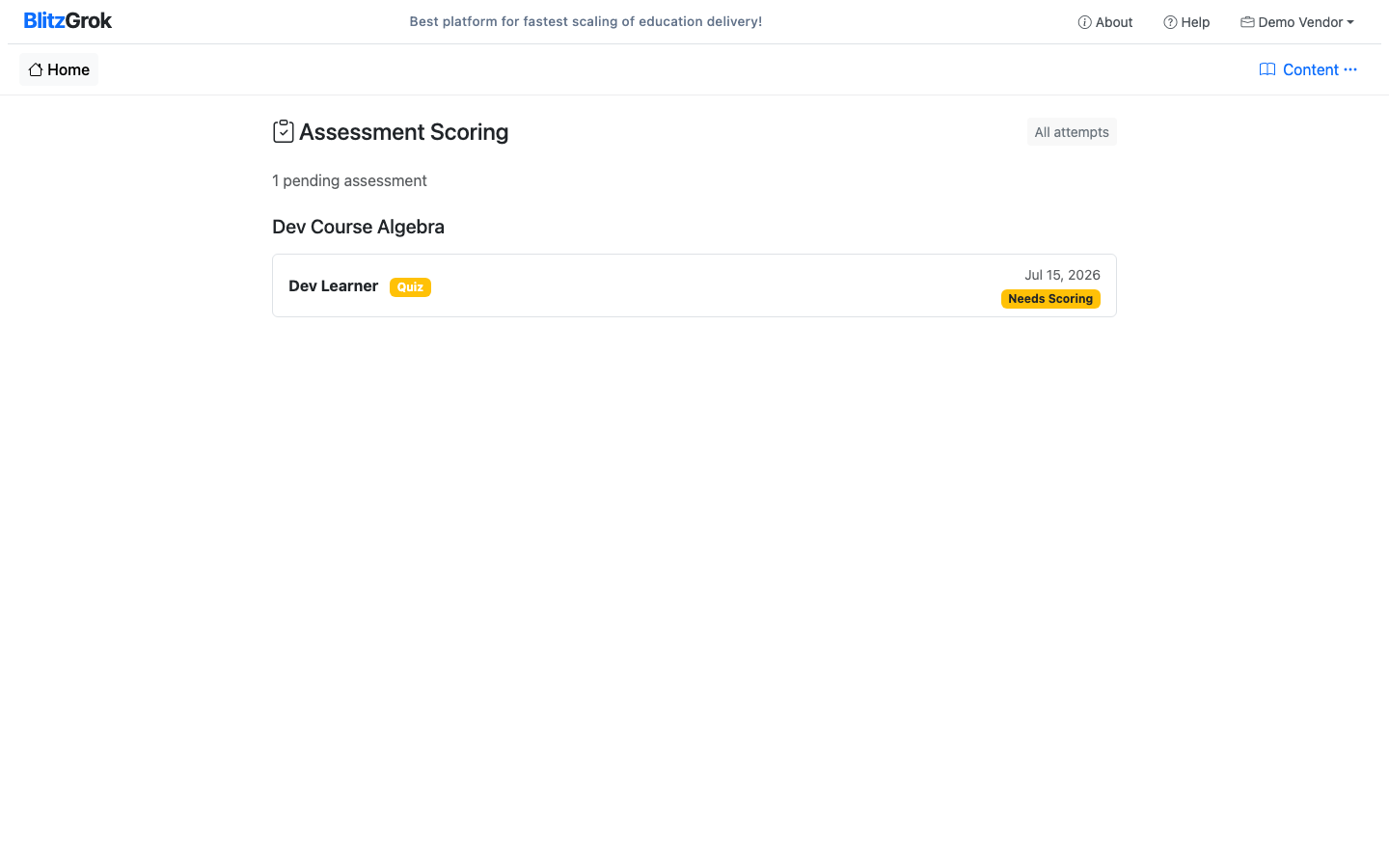
The scoring queue lists submitted attempts that need review across your courses. Attempts are grouped by course. Each row shows the learner, assessment mode, date, and a Needs Scoring badge.
Score an Attempt
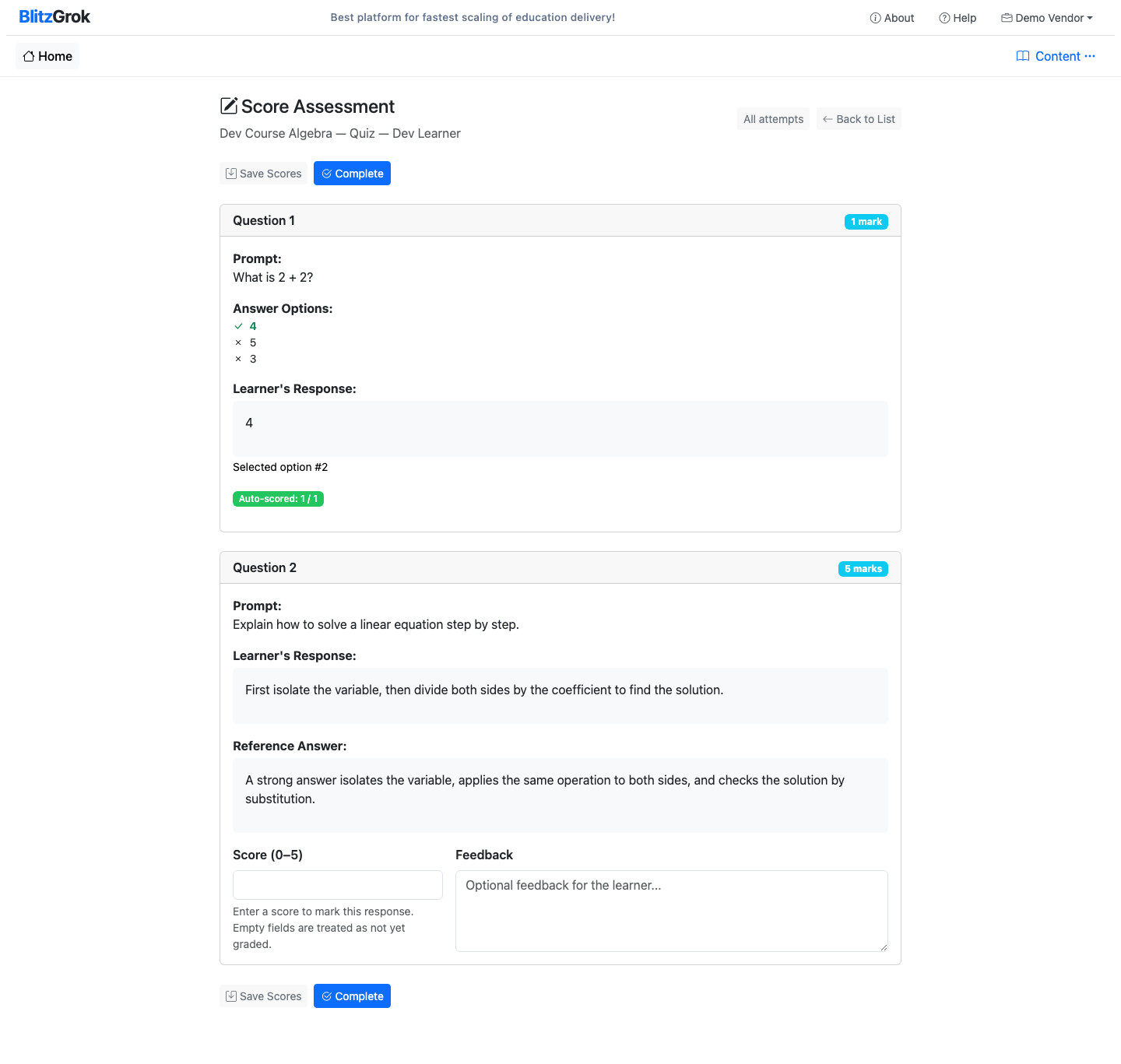
On the score page, each response appears as a card with the prompt, the learner’s answer, and scoring controls for items you must grade.
- Score — enter marks from 0 up to the question’s max. An empty Score means the item is not graded yet.
- Any entered value counts — including 0. Leaving the field blank is the only way to mark an item as still pending.
- Feedback — optional comments the learner sees after grades unlock.
- Reference Answer — shown when the question has one, so you can compare it with the learner’s response.
- Save Scores — store progress without releasing grades.
- Complete — finalize the attempt once every editable item has a score. Grades then become visible to the learner.
- Empty learner answers — blank long-answer / essay responses are auto-scored 0 at submit and do not need educator action.
Grades Stay Locked Until Complete
Learner grade visibility
Learners do not see percentage, pass/fail, or per-question marks while the attempt awaits review. Results unlock only after you click Complete and the attempt becomes scored.
Retakes blocked while pending
A learner cannot start a new attempt for the same course assessment while a submitted attempt still needs manual scoring. After Complete, normal max-attempt rules apply again.
When Manual Scoring Happens
What happens after submit depends on the question mix:
Long answer (manual default)
Needs manual scoring when there is no reference answer, or when a reference exists but Allow automatic AI grading is unchecked (default).
Long answer with AI opted in
Reference answer and Allow automatic AI grading checked → scored by AI after submit. You may still see AI-suggested marks when reviewing mixed attempts.
No manual items
Pure MCQ / auto-only (or AI-only) attempts finalize to an immediate score — nothing appears in the manual queue.
Answer Options Appear Only for MCQ
On the score page, the Answer Options list (correct choice highlighted) is shown only for multiple-choice questions. Long-answer and other text items show the prompt and learner response only — no options list.
Questions about scoring assessments?
We're here to help