Login Methods
Four ways to sign in — username and password, Google, QR code, and email one-time codes
In this guide
Username & Password
Use the Username & Password tab. Enter your username and password, agree to the Terms and Conditions if prompted, then click Log In. Optional Remember me for 30 days keeps you signed in longer on that device.
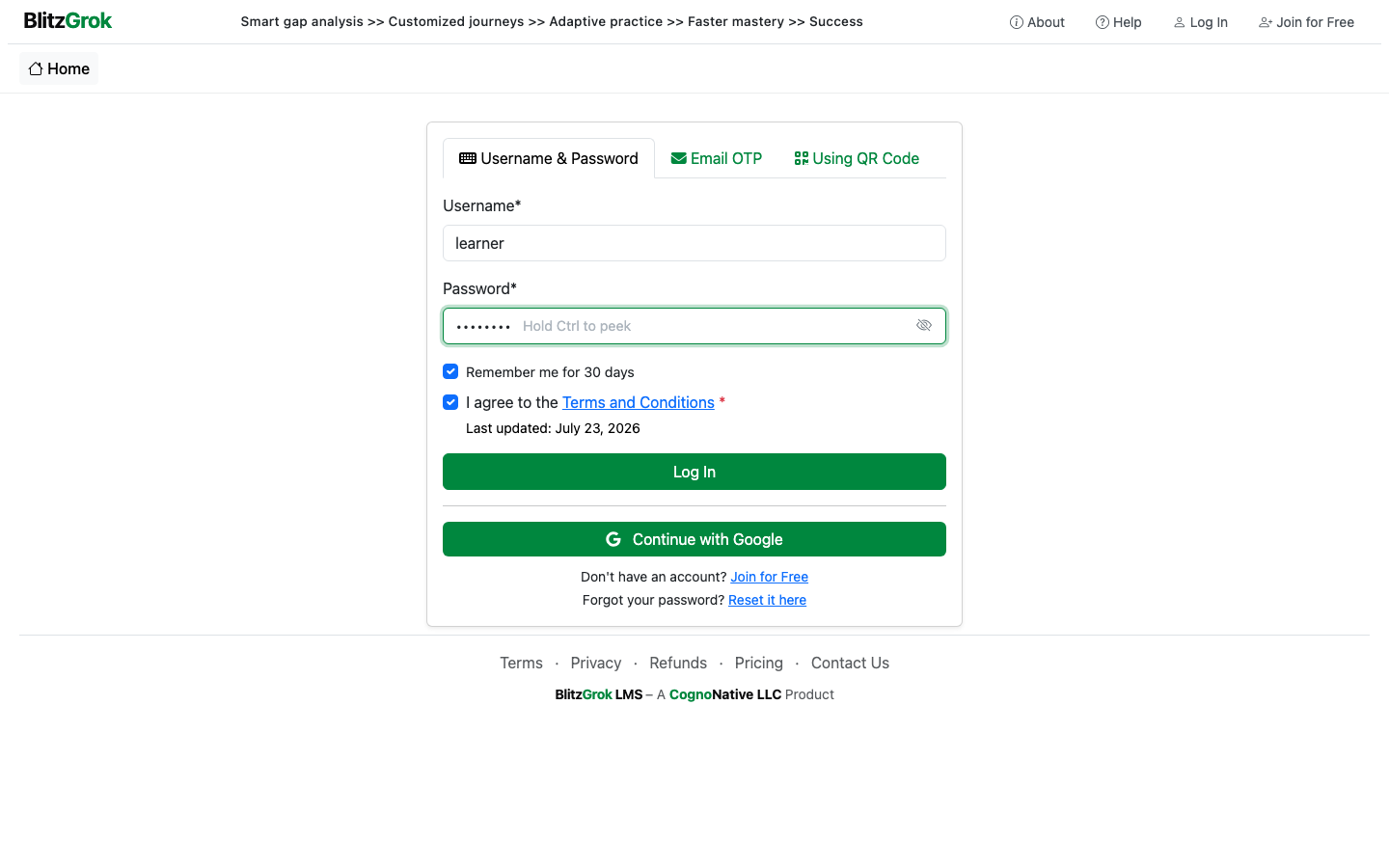
- Use your username only — email is not accepted here
- After several failed attempts, you may be asked to complete a reCAPTCHA
- Your account must be confirmed, and you must agree to the current Terms
Google Account
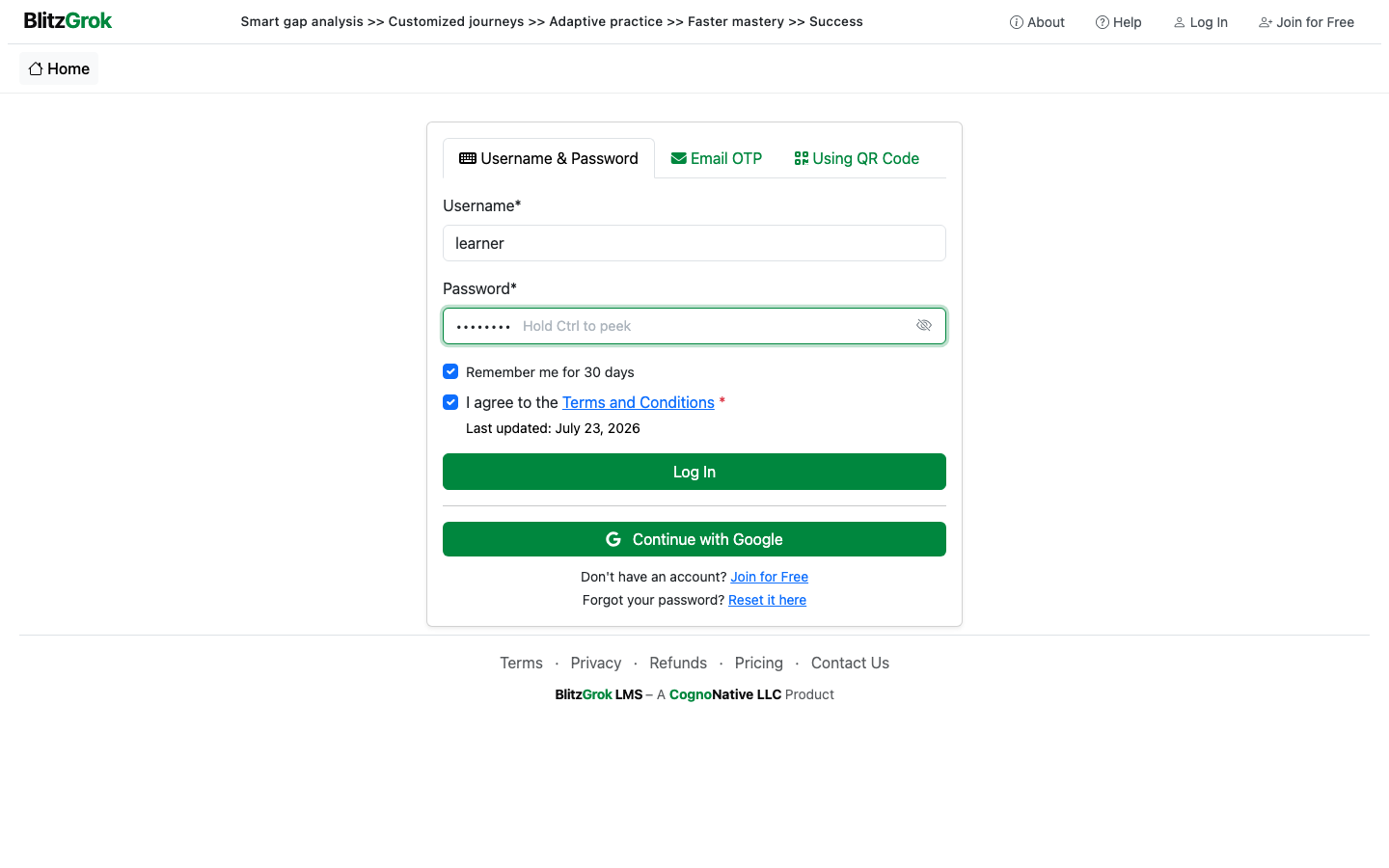
On the same Username & Password tab, click Continue with Google to sign in with a linked Google account.
QR Code
Generate a personal QR code in Settings, then scan it on a shared device that has a camera. The login page shows a Using QR Code tab when a camera is available.
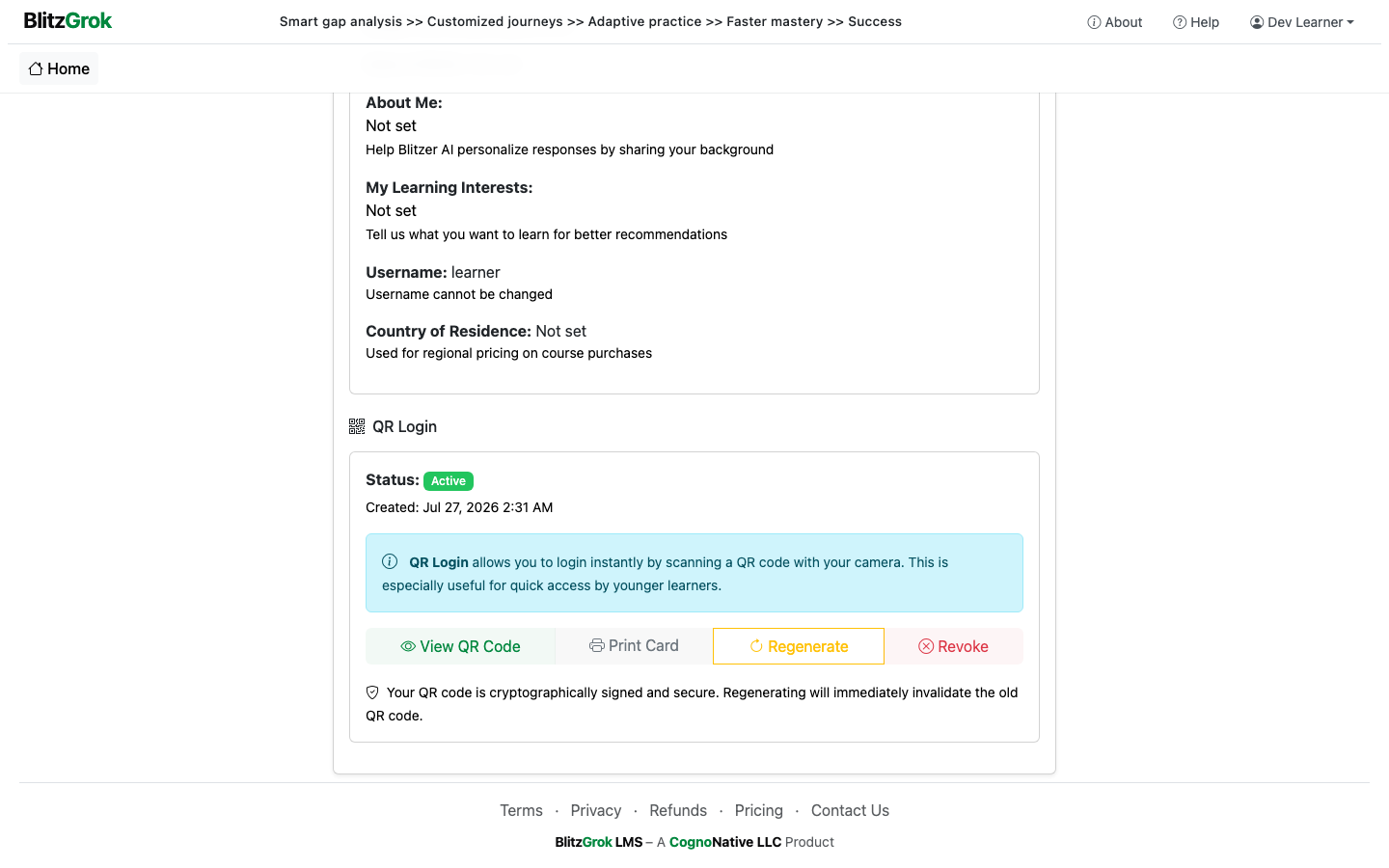
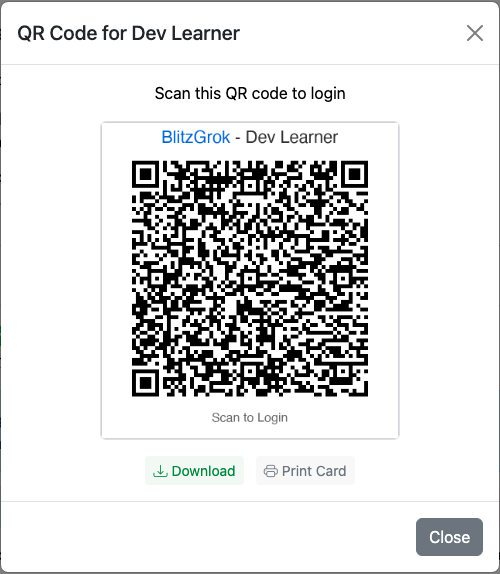
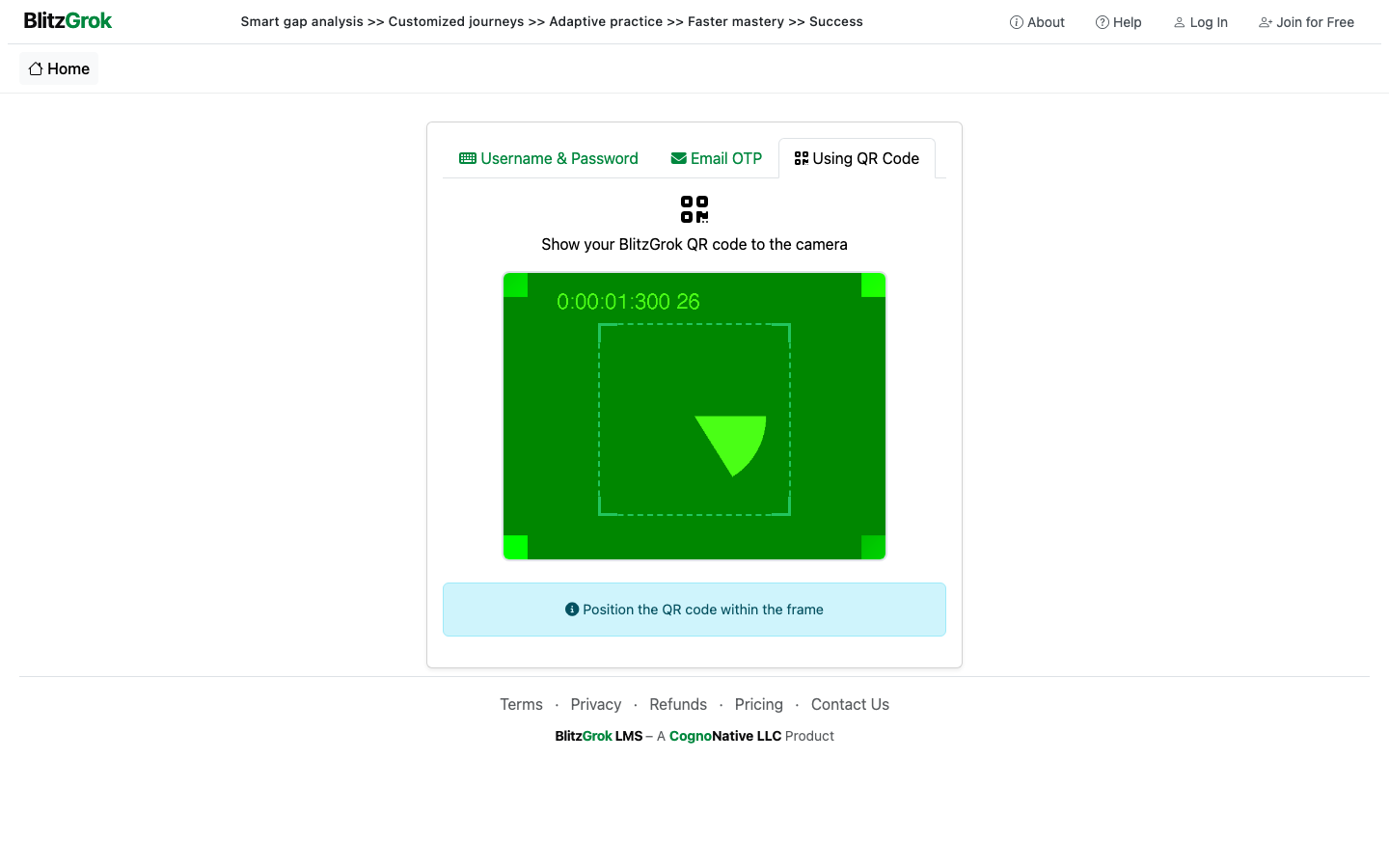
- In Settings, open QR Login and generate (or view) your code
- On the login page, open Using QR Code and hold the code up to the camera
- Codes stay valid until you regenerate or revoke them — regenerating invalidates the previous code
Email OTP
Prefer a one-time code instead of your password? Open the Email OTP tab, enter your username, and click Request OTP. A 6-digit code is emailed to the address on your account and expires in 3 minutes.
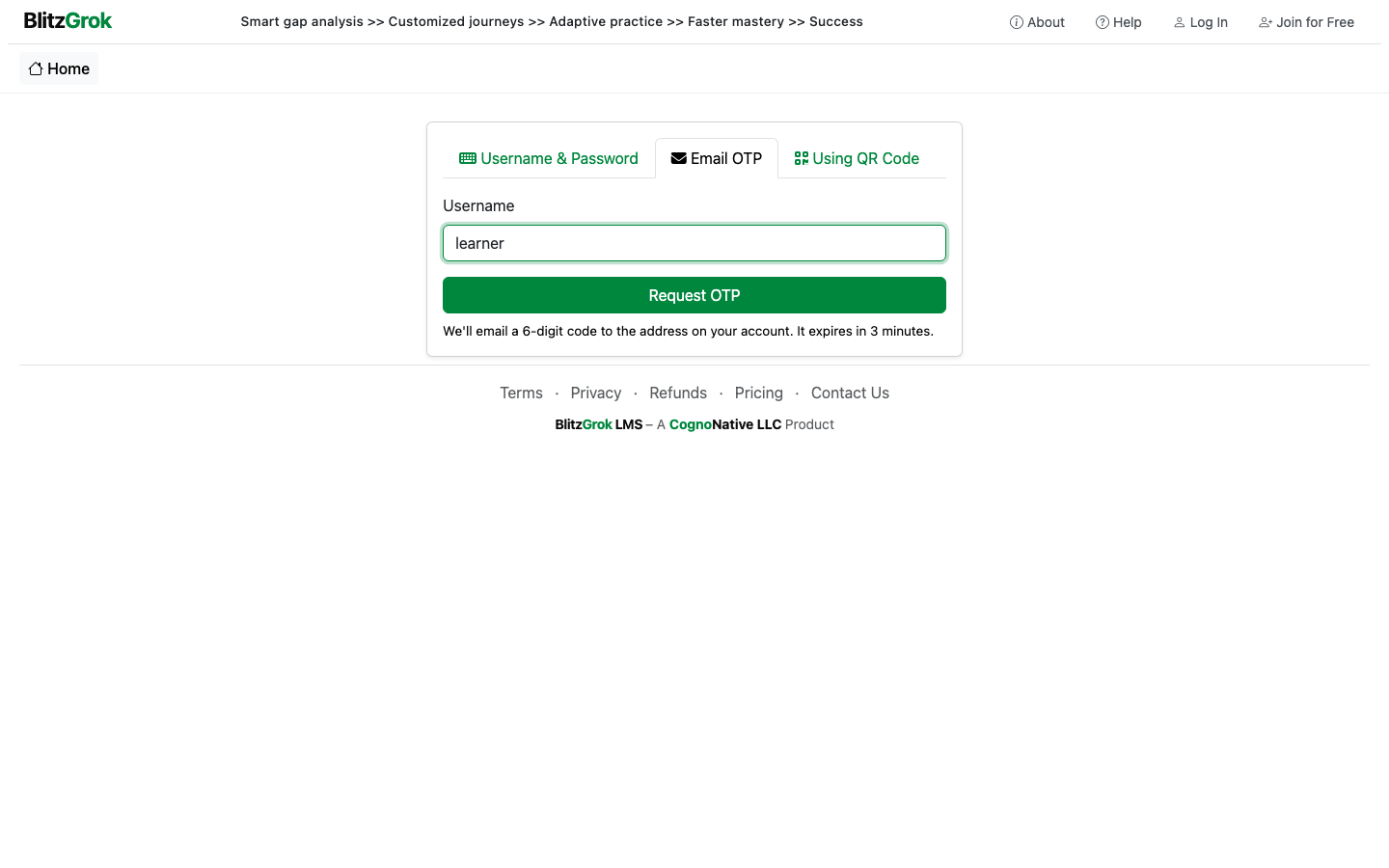
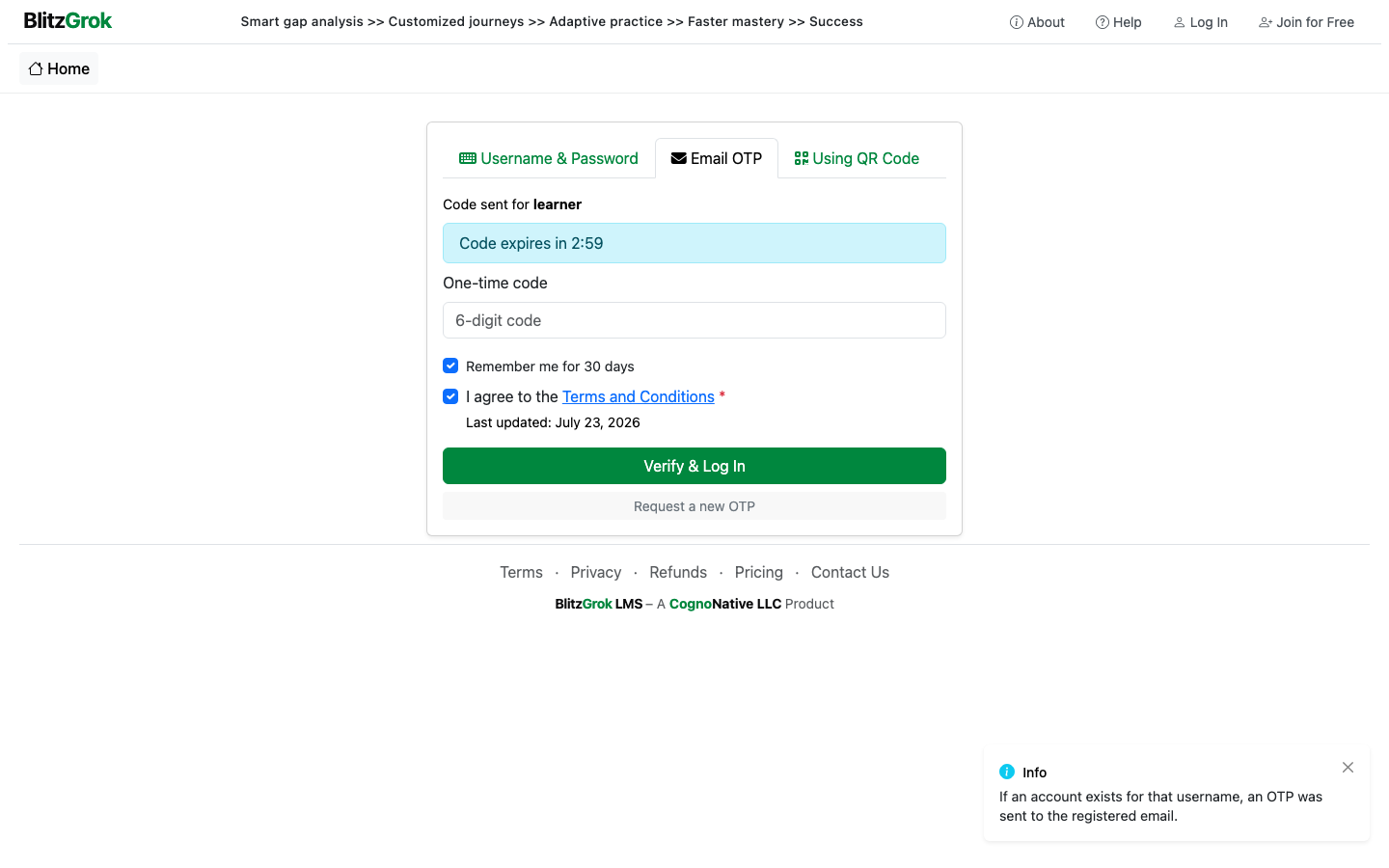
- Enter your username (not email) to request a code
- Type the plain 6-digit code from your email before it expires
- Requesting a new code replaces any previous unused code
- Same confirmation and Terms requirements apply as password login
Trouble signing in?
We're here to help